Welcome
Welcome to the renderling operator’s manual!
renderling is a cutting-edge, GPU-driven renderer designed to efficiently
handle complex scenes by leveraging GPU capabilities for most rendering
operations. It is particularly suited for indie game developers and researchers
interested in high-performance graphics rendering while working with GLTF files
and large-scale scenes.
The library is written in Rust and supports modern rendering techniques such as forward+ rendering and physically based shading, making it ideal for applications requiring advanced lighting and material effects.
This project is funded through NGI Zero Core, a fund established by NLnet with financial support from the European Commission’s Next Generation Internet program. Learn more at the NLnet project page.


Helpful Links
-
The official website is https://renderling.xyz. Here you can read the latest news and implementation details. You’re also likely reading this on this site!
-
The documentation is http://127.0.0.1:4000/docs/renderling/index.html.
-
The GitHub repo and issue track is https:://github.com/schell/renderling.
-
The project site on NLnet is https://nlnet.nl/project/Renderling/
Setup
renderling is a Rust library, so first you’ll need to get familiar with the
language. Visit https://www.rust-lang.org/learn/get-started if you’re not
already familiar.
Once you’re ready, start a new project with cargo new.
Then cd into your project directory and add renderling as a dependency:
cargo add --git https://github.com/schell/renderling.git --branch main
patch crates.io
renderling is special in that all the shaders are written in Rust using
Rust-GPU, which is currently between
releases. For this reason we need to add an entry to the [patch.crates-io]
section of our Cargo.toml:
[patch.crates-io]
spirv-std = { git = "https://github.com/rust-gpu/rust-gpu.git", rev = "05b34493ce661dccd6694cf58afc13e3c8f7a7e0" }
This is a temporary workaround that will be resolved after the next Rust-GPU release.
The rest is Rust business as usual.
WASM
TODO: write about setting up a WASM project.
Re-exports
renderling re-exports glam from its top level module,
because it provides the underlying mathematical types used throughout the API.
Context
The first step of any renderling program starts with renderling::context::Context.
The Context is responsible for managing the underlying wgpu runtime, including the
instance, adapter and queue.
It also sets up the RenderTarget, according to how the Context was created.
On that note, it’s important to know that there are two main ways to create a Context:
- A headless context, which renders to a texture, can be created with
Context::headlessorContext::try_new_headless, depending on your error handling scenario. - A surface context, with a window (possibly from
winit) or a canvas fromweb-sys.
    use renderling::context::Context;

    let ctx = Context::headless(256, 256).await;
Getting a frame
Another important concept is the Frame. Each time you’d like to present a new image
you must acquire a frame from the Context with Context::get_next_frame
and present it with Frame::present.
Presenting on WASM
When on WASM (aka running in a browser), Frame::present is a noop.
It’s still a good idea to use it though, so you don’t forget when programming in native.
Saving the frame
You can also read out the frame to an image provided by the image
crate. See the Frame docs for help with the read_* functions.
Frame example
    let frame = ctx.get_next_frame().unwrap();
    // ...do some rendering
    //
    // Then capture the frame into an image, if you like
    let _image_capture = frame.read_image().await.unwrap();
    frame.present();
Staging resources 🎭
The Stage is the most important type in renderling.
It’s responsible for staging all your scene’s data on the GPU, as well as
linking all the various effects together and rendering it all.
Stage creation
The Stage is created with Context::new_stage.
    use renderling::{context::Context, glam::Vec4, stage::Stage};

    let ctx = Context::headless(256, 256).await;
    let stage: Stage = ctx
        .new_stage()
        .with_background_color(Vec4::new(0.5, 0.5, 0.5, 1.0));
Notice that context creation is asynchronous. Most of the renderling API is
synchronous, but context creation is one of two exceptions - the other being
reading data back from the GPU.
Also note that we can set the background color of the stage using a Vec4.
Above we’ve set the background to a light gray.
Resource creation
Now we’ll begin using the Stage to create our scene’s resources. At the end of
all our staging we should end up with a Camera and one simple
Primitive representing a colored unit cube, sitting right in
front of the camera.
Camera
In order to see our scene we need a Camera.
The camera controls the way our scene looks when rendered. It uses separate projection and view matrices to that end. Discussing these matrices is out of scope for this manual, but there are plenty of resources online about what they are and how to use them.
glam and re-exports
One important detail about these matrices, though, is that they come from the glam
library. Specifically they are Mat4, which are a 4x4 transformation matrix.
Creation
On with our camera. Creation is dead simple using Stage::new_camera.
    use renderling::{
        camera::Camera,
        glam::{Mat4, Vec3},
    };

    let camera: Camera = stage
        .new_camera()
        .with_default_perspective(256.0, 256.0)
        .with_view(Mat4::look_at_rh(Vec3::splat(1.5), Vec3::ZERO, Vec3::Y));
    // This is technically not necessary because Stage always "uses" the first
    // camera created, but we do it here for demonstration.
    stage.use_camera(&camera);
Each resource returned by the many Stage::new_* functions return resources that adhere
to the builder pattern. That means the value a Stage::new_* function returns
can be chained with other calls that configure it. This pattern is nice because it
allows your editor to display the customizations available, which makes API discovery
easier for everyone.
Above we use Camera::with_default_perspective to
set the camera to use a default perspective projection.
Note that usually when we create a Camera, we have to tell
the Stage that we want to use the camera, but the first Camera created will
automatically be used. We could potentially have many cameras and switch them around at will
by calling Stage::use_camera before rendering.
Geometry
The first step to creating a Primitive is staging some vertices in a triangle
mesh. For this example we’ll use the triangle mesh of the unit cube. The
renderling::math module provides a convenience function for generating this mesh.
    use renderling::geometry::{Vertex, Vertices};

    let vertices: Vertices = stage.new_vertices(renderling::math::unit_cube().into_iter().map(
        |(position, normal)| {
            Vertex::default()
                .with_position(position)
                .with_normal(normal)
                .with_color({
                    // The color can vary from vertex to vertex
                    //
                    // X axis is green
                    let g: f32 = position.x + 0.5;
                    // Y axis is blue
                    let b: f32 = position.y + 0.5;
                    // Z is red
                    let r: f32 = position.z + 0.5;
                    Vec4::new(r, g, b, 1.0)
                })
        },
    ));
Here we create Vertices, which stages the unit cube points on the GPU.
Next we’ll unload those points from the CPU, to free up the memory:
    use renderling::types::GpuOnlyArray;

    let vertices: Vertices<GpuOnlyArray> = vertices.into_gpu_only();
Unloading the CPU memory like this isn’t strictly necessary, but it’s beneficial to
know about. If we were planning on inspecting or modifying the underlying
Vertex values with Vertices::get_vertex and
Vertices::modify_vertex, we could skip this step.
After unloading, however, we can still set a Vertex at a specific
index using Vertices::set_vertex.
Material
Next we stage a Material.
Materials denote how a mesh looks by specifying various colors and shading values, as well as whether or not the material is lit by our lighting, which we’ll talk about in later chapters. For now we’ll provide a material that doesn’t really do anything except let the vertex colors show through.
    let material = stage
        .new_material()
        .with_albedo_factor(Vec4::ONE)
        .with_has_lighting(false);
Primitive
Now that we have some Vertices and a Material we can create our primitive
using the familiar builder pattern.
    let prim = stage
        .new_primitive()
        .with_vertices(&vertices)
        .with_material(&material);
We don’t actually do anything with the primitive at this point though.
Rendering
Now the scene is set and we’re ready to render.
Rendering is a three-step process:
- Get the next frame
- Render the staged scene into the view of the frame
- Present the frame
    let frame = ctx.get_next_frame().unwrap();
    stage.render(&frame.view());

    let img = frame.read_image().await.unwrap();
    img.save("stage-example.png").unwrap();
    frame.present();
Above we added an extra step where we read an image of the frame from the GPU, so we can see it here.
Results
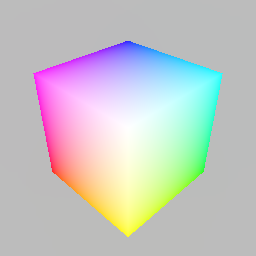
And there you have it! We’ve rendered a nice cube.
Removing resources
To remove resources from the stage we can usually just Drop them from all
scopes. There are a few types that require extra work to remove, though.
Primitives must be manually removed with Stage::remove_primitive,
which removes the primitive from all internal lists (like the list of draw calls).
Lights must also be removed from the stage for similar reasons.
Now we’ll run through removing the cube primitive, but first let’s see how many bytes we’ve committed to the GPU through the stage:
    let bytes_committed = stage.used_gpu_buffer_byte_size();
    println!("bytes_committed: {bytes_committed}");
As of this writing, these lines print out 8296, or roughly 8k bytes.
That may seem like a lot for one cube, but keep in mind that is a count of
all bytes in all buffers, including any internal machinery.
Now let’s remove the cube primitive, drop the other resources, and render again:
    let staged_prim_count = stage.remove_primitive(&prim);
    assert_eq!(0, staged_prim_count);
    drop(vertices);
    drop(material);
    drop(prim);

    let frame = ctx.get_next_frame().unwrap();
    stage.render(&frame.view());
    let img = frame.read_image().await.unwrap();
    img.save("stage-example-gone.png").unwrap();
    frame.present();
Visibility
If instead we wanted to keep the resources around but make the Primitive invisible,
we could have used Primitive::set_visible.
See the Stage and Primitive docs for more info.
Loading GLTF files 📂
renderling’s built-in model format is GLTF, a
versatile and efficient format for transmitting 3D models. GLTF, which stands
for GL Transmission Format, is designed to be a compact, interoperable format
that can be used across various platforms and applications. It supports a wide
range of features including geometry, materials, animations, and more, making it
a popular choice for 3D graphics.
Using GLTF files
The previous section on staging resources covered the creation of
various GPU resources such as Camera, Vertices, Material,
Primitive, and Transform. When you load a GLTF file into renderling,
it automatically stages a collection of these resources. This means that the
GLTF file is parsed, and the corresponding GPU resources are created and
returned to you, allowing you to integrate them into your application
seamlessly.
Example
We’ll start by creating our Context, Stage and Camera:
    use renderling::{
        camera::Camera,
        context::Context,
        glam::{Mat4, Vec3, Vec4},
        stage::Stage,
    };

    let ctx = Context::headless(256, 256).await;
    let stage: Stage = ctx
        .new_stage()
        .with_background_color(Vec4::new(0.25, 0.25, 0.25, 1.0));

    let _camera: Camera = {
        let aspect = 1.0;
        let fovy = core::f32::consts::PI / 4.0;
        let znear = 0.1;
        let zfar = 10.0;
        let projection = Mat4::perspective_rh(fovy, aspect, znear, zfar);
        let eye = Vec3::new(0.5, 0.5, 0.8);
        let target = Vec3::new(0.0, 0.3, 0.0);
        let up = Vec3::Y;
        let view = Mat4::look_at_rh(eye, target, up);

        stage
            .new_camera()
            .with_projection_and_view(projection, view)
    };
Then we load our GLTF file through the Stage with
Stage::load_gltf_document_from_path, and as long as there are no errors it returns a
GltfDocument:
    use renderling::{gltf::GltfDocument, types::GpuOnlyArray};
    let model: GltfDocument<GpuOnlyArray> = stage
        .load_gltf_document_from_path(workspace_dir().join("gltf/marble_bust_1k.glb"))
        .unwrap()
        .into_gpu_only();
    println!("bounds: {:?}", model.bounding_volume());
On WASM we would use Stage::load_gltf_document_from_bytes as the filesystem
is unavailable.
Notice how in the above example we call GltfDocument::into_gpu_only to
unload the mesh geometry from the CPU.
Render
    let frame = ctx.get_next_frame().unwrap();
    stage.render(&frame.view());
    let img = frame.read_image().await.unwrap();
    img.save("gltf-example-shadow.png").unwrap();
    frame.present();
Result
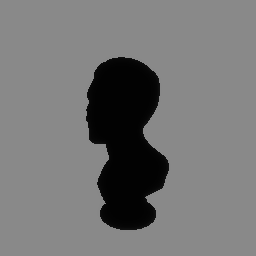
But wait! It’s all in shadow.
This is because we haven’t added any lighting.
We have two options here:
- Turn of lighting and show the scene “unlit”, using
Stage::set_has_lighting - Add some lights
For now we’ll go with option 1, as lighting happens in a later section:
stage.set_has_lighting(false);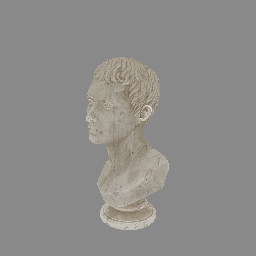
Rendering a skybox 🌌
One of the most striking effects we can provide is a skybox.
Using a skybox is an easy way to improve immersion, and with
renderling your skyboxes can also illuminate the scene, but
we’ll save that for a later example. For now let’s set up
simple skybox for our marble bust scene.
Building on the stage example
We’ll start out this example by extending the example from the loading GLTF files section. In that example we loaded a model of an old marble bust:
    use renderling::{
        camera::Camera,
        context::Context,
        glam::{Mat4, Vec3, Vec4},
        stage::Stage,
    };

    let ctx = Context::headless(256, 256).await;
    let stage: Stage = ctx
        .new_stage()
        .with_background_color(Vec4::new(0.25, 0.25, 0.25, 1.0))
        .with_lighting(false);

    let _camera: Camera = {
        let aspect = 1.0;
        let fovy = core::f32::consts::PI / 4.0;
        let znear = 0.1;
        let zfar = 10.0;
        let projection = Mat4::perspective_rh(fovy, aspect, znear, zfar);
        let eye = Vec3::new(0.5, 0.5, 0.8);
        let target = Vec3::new(0.0, 0.3, 0.0);
        let up = Vec3::Y;
        let view = Mat4::look_at_rh(eye, target, up);

        stage
            .new_camera()
            .with_projection_and_view(projection, view)
    };

    use renderling::{gltf::GltfDocument, types::GpuOnlyArray};
    let model: GltfDocument<GpuOnlyArray> = stage
        .load_gltf_document_from_path(workspace_dir().join("gltf/marble_bust_1k.glb"))
        .unwrap()
        .into_gpu_only();
    println!("bounds: {:?}", model.bounding_volume());

    let frame = ctx.get_next_frame().unwrap();
    stage.render(&frame.view());
    frame.present();
Adding the skybox
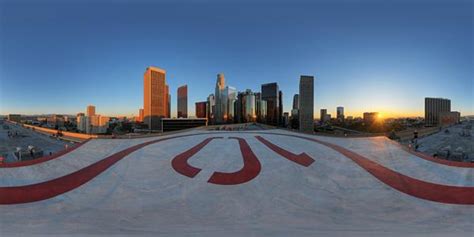
In renderling, skyboxes get their background from an “HDR” image.
These are typically large three dimensional images. You can find
free HDR images at PolyHaven and other
places around the web.
For this example we’ll be using this HDR:
    let skybox = stage
        .new_skybox_from_path(workspace_dir().join("img/hdr/helipad.hdr"))
        .unwrap();
    stage.use_skybox(&skybox);
Then we render:
    let frame = ctx.get_next_frame().unwrap();
    stage.render(&frame.view());
    let image = frame.read_image().await.unwrap();
    image.save("skybox.png").unwrap();
    frame.present();
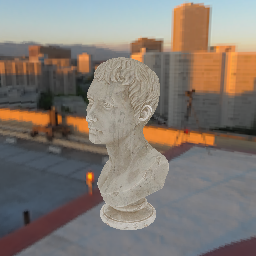
Results
And there we go!
Lighting 💡
Lighting in renderling comes in a few flavors:
- Unlit - no lighting at all
- Analytical lights - specific lights created by the programmer
- directional
- point
- spot
- Image based lighting - lighting by 3d environment maps
Scene recap
We’ve already used the “unlit” method of turning off all lighting on the stage.
Let’s do a quick recap of our scene, starting where we left off with the skybox example.
We created our context, and then our stage, and it’s important to note that we
used .with_lighting(false) on the stage, which tells the stage not to use any
lighting.
This is the “unlit” lighting method mentioned above.
Then we created a camera and loaded a GLTF file of a marble bust, then loaded an HDR image into a skybox, and then rendered:
    use renderling::{
        camera::Camera,
        context::Context,
        glam::{Mat4, Vec3, Vec4},
        gltf::GltfDocument,
        stage::Stage,
        types::GpuOnlyArray,
    };

    let ctx = Context::headless(256, 256).await;
    let stage: Stage = ctx
        .new_stage()
        .with_background_color(Vec4::new(0.25, 0.25, 0.25, 1.0))
        .with_lighting(false);

    let _camera: Camera = {
        let aspect = 1.0;
        let fovy = core::f32::consts::PI / 4.0;
        let znear = 0.1;
        let zfar = 10.0;
        let projection = Mat4::perspective_rh(fovy, aspect, znear, zfar);
        let eye = Vec3::new(0.5, 0.5, 0.8);
        let target = Vec3::new(0.0, 0.3, 0.0);
        let up = Vec3::Y;
        let view = Mat4::look_at_rh(eye, target, up);

        stage
            .new_camera()
            .with_projection_and_view(projection, view)
    };

    let model: GltfDocument<GpuOnlyArray> = stage
        .load_gltf_document_from_path(workspace_dir().join("gltf/marble_bust_1k.glb"))
        .unwrap()
        .into_gpu_only();
    println!("bounds: {:?}", model.bounding_volume());

    let skybox = stage
        .new_skybox_from_path(workspace_dir().join("img/hdr/helipad.hdr"))
        .unwrap();
    stage.use_skybox(&skybox);

    let frame = ctx.get_next_frame().unwrap();
    stage.render(&frame.view());
    frame.present();
Now let’s learn about analytical lights, then image based lighting, and finally shadow mapping.
Analytical lights
Analytical lighting in real-time rendering refers to the use of mathematical models to simulate the effects of light on surfaces.
What that means in renderling is that analytical lights are the lights that
you create, configure and place programmatically, one by one, into the scene.
To do any lighting, though, we have to turn lighting back on in the stage:
    stage.set_has_lighting(true);

    let frame = ctx.get_next_frame().unwrap();
    stage.render(&frame.view());
    let img = frame.read_image().await.unwrap();
    img.save("lighting/no-lights.png").unwrap();
    frame.present();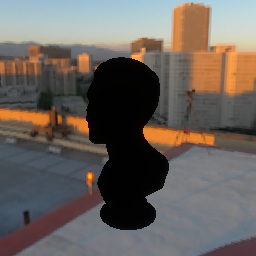
As we talked about in the GLTF example, with no lights on the stage, the bust renders in shadow.
Now we’re ready to add some lights.
Directional lights
Directional lights simulate light coming from a specific direction, like sunlight. They affect all objects in the scene equally, regardless of their position, and do not diminish with distance. This makes them ideal for simulating large-scale lighting effects.
Let’s create a directional light:
    use renderling::{
        color::css_srgb_color_to_linear,
        light::{AnalyticalLight, DirectionalLight, Lux},
    };

    let sunset_amber_sunlight_color = css_srgb_color_to_linear(250, 198, 104);

    let directional: AnalyticalLight<DirectionalLight> = stage
        .new_directional_light()
        .with_direction(Vec3::new(-0.5, -0.5, 0.0))
        .with_color(sunset_amber_sunlight_color)
        .with_intensity(Lux::OUTDOOR_OVERCAST_HIGH);

    let frame = ctx.get_next_frame().unwrap();
    stage.render(&frame.view());
    let img = frame.read_image().await.unwrap();
    img.save("lighting/directional.png").unwrap();
    frame.present();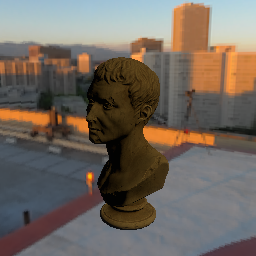
Not bad!
Before moving on we’ll remove the directional light:
    stage.remove_light(&directional);
    drop(directional);
Dropping the light isn’t strictly necessary, except to reclaim the resources.
Point lights
Point lights emit light equally in all directions from a single point in space, similar to a light bulb. They are ideal for simulating localized light sources and their intensity diminishes with distance, following the inverse square law. This makes them suitable for creating realistic lighting effects in small areas.
Let’s create a point light:
    use renderling::light::{Candela, PointLight};

    let point: AnalyticalLight<PointLight> = stage
        .new_point_light()
        .with_position({
            let bust_aabb = model.bounding_volume().unwrap();
            bust_aabb.max
        })
        .with_color(sunset_amber_sunlight_color)
        .with_intensity(Candela(100.0));

    let frame = ctx.get_next_frame().unwrap();
    stage.render(&frame.view());
    let img = frame.read_image().await.unwrap();
    img.save("lighting/point.png").unwrap();
    frame.present();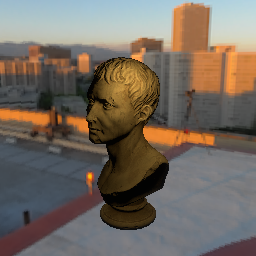
Similarly we’ll remove the point light before moving on:
    stage.remove_light(&point);
    drop(point);
Spot lights
Spot lights emit a cone of light from a single point, with a specified direction and angle. They are useful for highlighting specific areas or objects in a scene, such as a spotlight on a stage. The intensity of a spotlight diminishes with distance and is also affected by the angle of the cone, allowing for precise control over the lighting effect.
Let’s create a spotlight. One thing about spotlights though, they can be a bit fiddly due to having a position, direction and inner and outer cutoff values. For this reason we’ll place the spotlight at the camera’s position and point it in the same direction, so you can see the effect:
    use renderling::light::SpotLight;

    let camera_eye = Vec3::new(0.5, 0.5, 0.8);
    let camera_target = Vec3::new(0.0, 0.3, 0.0);
    let position = camera_eye;
    let direction = camera_target - camera_eye;
    let spot: AnalyticalLight<SpotLight> = stage
        .new_spot_light()
        .with_position(position)
        .with_direction(direction)
        // the cutoff values determine the angle of the cone
        .with_inner_cutoff(0.15)
        .with_outer_cutoff(0.2)
        .with_color(sunset_amber_sunlight_color)
        .with_intensity(Candela(12_000.0));

    let frame = ctx.get_next_frame().unwrap();
    stage.render(&frame.view());
    let img = frame.read_image().await.unwrap();
    img.save("lighting/spot.png").unwrap();
    frame.present();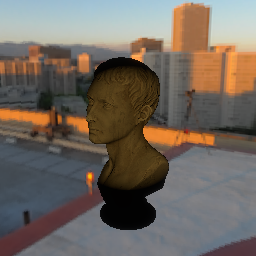
Ambient light
In addition to the three light types above, the stage has a global ambient color - a constant light contribution added to every fragment, modulated by the surface albedo. It defaults to zero.
Ambient light fills in shadowed areas, so shadows read as the ambient color instead of pure black:
// An orange ambient glow, at 30% intensity.
stage.set_ambient_color(Vec4::new(1.0, 0.5, 0.0, 0.3));
The XYZ components are the color, and W is the intensity. It can also be set
at stage creation with .with_ambient_color(...), and the current value read
back with Stage::ambient_color.
Good enough! Now on to image-based lighting, which uses environment maps to simulate complex lighting scenarios. This technique captures real-world lighting conditions and applies them to the scene, providing more realistic reflections and ambient lighting.
Image based lighting 🌐
Image-based lighting (IBL) is a technique that uses environment maps to illuminate scenes. It captures real-world lighting conditions and applies them to 3D models, providing realistic reflections and ambient lighting. IBL is particularly effective for creating natural-looking scenes by simulating complex lighting scenarios that are difficult to achieve with traditional analytical lights alone.
Example setup
We’ll start from where we left off with the skybox example (before adding analytical lights):
    use renderling::{
        camera::Camera,
        context::Context,
        glam::{Mat4, Vec3, Vec4},
        gltf::GltfDocument,
        stage::Stage,
        types::GpuOnlyArray,
    };

    let ctx = Context::headless(512, 512).await;
    let stage: Stage = ctx
        .new_stage()
        .with_background_color(Vec4::new(0.25, 0.25, 0.25, 1.0));

    let _camera: Camera = {
        let aspect = 1.0;
        let fovy = core::f32::consts::PI / 4.0;
        let znear = 0.1;
        let zfar = 10.0;
        let projection = Mat4::perspective_rh(fovy, aspect, znear, zfar);
        let eye = Vec3::new(0.5, 0.5, 0.8);
        let target = Vec3::new(0.0, 0.3, 0.0);
        let up = Vec3::Y;
        let view = Mat4::look_at_rh(eye, target, up);

        stage
            .new_camera()
            .with_projection_and_view(projection, view)
    };

    let model: GltfDocument<GpuOnlyArray> = stage
        .load_gltf_document_from_path(workspace_dir().join("gltf/marble_bust_1k.glb"))
        .unwrap()
        .into_gpu_only();

    let skybox = stage
        .new_skybox_from_path(workspace_dir().join("img/hdr/helipad.hdr"))
        .unwrap();
    stage.use_skybox(&skybox);
Now we’ll add image based lighting.
The Ibl type
Ibl is the type responsible for image based lighting.
You can think of it as a type of “global” light.
More than one Ibl may exist, but only one can be used
by the stage at render time.
Creating an Ibl follows the same expected builder pattern,
and just like Skybox we call a familiar use_* function
on the Stage to use it:
    use renderling::pbr::ibl::Ibl;

    let ibl: Ibl = stage.new_ibl(&skybox);
    stage.use_ibl(&ibl);

    let frame = ctx.get_next_frame().unwrap();
    stage.render(&frame.view());
    let img = frame.read_image().await.unwrap();
    img.save("lighting/ibl.png").unwrap();
    frame.present();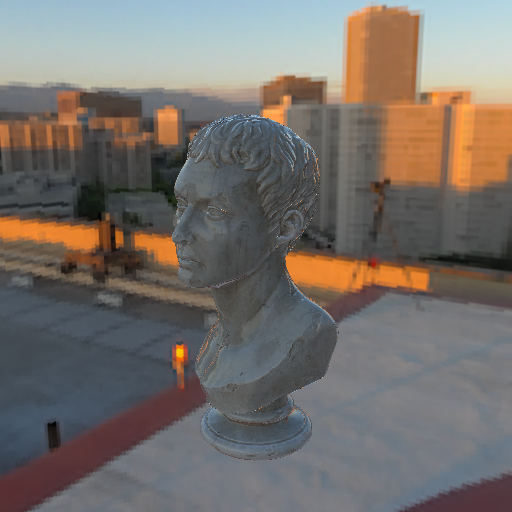
Mix it up! 🎨
You can mix global image based lighting with analytical lights, just as you might expect. Here we’ll build on the previous example to add a point light:
    use renderling::{color::css_srgb_color_to_linear, light::Candela};

    let sunset_amber_sunlight_color = css_srgb_color_to_linear(250, 198, 104);
    let _point = stage
        .new_point_light()
        .with_position({
            let bust_aabb = model.bounding_volume().unwrap();
            bust_aabb.max
        })
        .with_color(sunset_amber_sunlight_color)
        .with_intensity(Candela(100.0));

    let frame = ctx.get_next_frame().unwrap();
    stage.render(&frame.view());
    let img = frame.read_image().await.unwrap();
    img.save("lighting/ibl-analytical-mixed.png").unwrap();
    frame.present();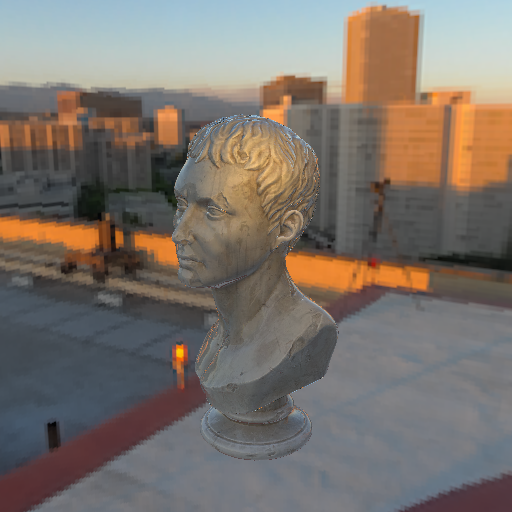
By combining IBL with analytical lights, you can achieve a rich and dynamic lighting environment that captures both the subtle nuances of ambient light and the dramatic effects of direct illumination. Experiment with different environment maps and light setups to find the perfect balance for your scene.
Shadow mapping 🌑
Shadow mapping is the technique used to render shadows cast by lights.
It works by rendering the scene one more time, but from the point of view of the light. Instead of colors, this rendering stores the depth of each fragment - how far away the closest surface is. Then, when the scene is shaded for the camera, each fragment can compare its own depth from the light’s perspective to the stored depth. If the fragment is farther away, something is in front of it, and the fragment is in shadow.
In renderling shadow maps are rendered into textures stored in a shared
“shadow map atlas”. The size of the atlas can be configured with
Context::with_shadow_mapping_atlas_texture_size.
Example setup
We’ll continue with our marble bust scene, but this time we’ll add a ground plane for the bust’s shadow to land on, and a directional light to cast it:
    use renderling::{
        camera::Camera,
        context::Context,
        geometry::Vertex,
        glam::{Mat4, Vec3, Vec4},
        gltf::GltfDocument,
        light::{AnalyticalLight, DirectionalLight, Lux},
        primitive::Primitive,
        stage::Stage,
        types::GpuOnlyArray,
    };

    let ctx = Context::headless(512, 512).await;
    let stage: Stage = ctx
        .new_stage()
        .with_background_color(Vec4::new(0.25, 0.25, 0.25, 1.0));

    let _camera: Camera = {
        let aspect = 1.0;
        let fovy = core::f32::consts::PI / 4.0;
        let znear = 0.1;
        let zfar = 10.0;
        let projection = Mat4::perspective_rh(fovy, aspect, znear, zfar);
        let eye = Vec3::new(0.5, 0.5, 0.8);
        let target = Vec3::new(0.0, 0.3, 0.0);
        let up = Vec3::Y;
        let view = Mat4::look_at_rh(eye, target, up);

        stage
            .new_camera()
            .with_projection_and_view(projection, view)
    };

    // Load the marble bust, as in the lighting section.
    let model: GltfDocument<GpuOnlyArray> = stage
        .load_gltf_document_from_path(workspace_dir().join("gltf/marble_bust_1k.glb"))
        .unwrap()
        .into_gpu_only();

    // Add a ground plane for the bust's shadow to land on.
    let y = -0.01;
    let s = 2.0;
    let floor: Primitive = stage
        .new_primitive()
        .with_vertices(
            stage.new_vertices([
                Vertex::default()
                    .with_position([s, y, s])
                    .with_normal(Vec3::Y),
                Vertex::default()
                    .with_position([s, y, -s])
                    .with_normal(Vec3::Y),
                Vertex::default()
                    .with_position([-s, y, -s])
                    .with_normal(Vec3::Y),
                Vertex::default()
                    .with_position([s, y, s])
                    .with_normal(Vec3::Y),
                Vertex::default()
                    .with_position([-s, y, -s])
                    .with_normal(Vec3::Y),
                Vertex::default()
                    .with_position([-s, y, s])
                    .with_normal(Vec3::Y),
            ]),
        )
        .with_material(
            stage
                .new_material()
                .with_albedo_factor(Vec4::new(0.85, 0.85, 0.85, 1.0)),
        );

    // Create a directional light.
    let sun: AnalyticalLight<DirectionalLight> = stage
        .new_directional_light()
        .with_direction(Vec3::new(-0.4, -1.0, -0.6).normalize())
        .with_color(Vec4::ONE)
        .with_intensity(Lux::OUTDOOR_OVERCAST_HIGH);
Without shadows
Rendering the scene now gives us a well-lit bust, but no shadow:
    let frame = ctx.get_next_frame().unwrap();
    stage.render(&frame.view());
    let img_without_shadow = frame.read_image().await.unwrap();
    img_without_shadow.save("lighting/shadow-none.png").unwrap();
    frame.present();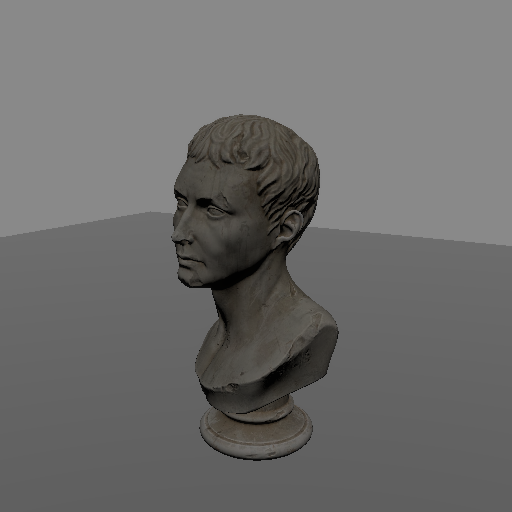
Notice how the ground is just as bright beneath the bust as it is everywhere else. The bust does not block the light at all.
Creating a shadow map
To cast shadows, we create a ShadowMap for our light using
Stage::new_shadow_map:
    use renderling::glam::UVec2;

    // Create a shadow map for the sun.
    //
    // The first argument is the light to cast shadows from. The `size`
    // determines the resolution of the shadow map - bigger maps give
    // crisper shadows but use more memory. `z_near` and `z_far` bound
    // the light's frustum - only objects within the frustum cast
    // shadows.
    //
    // Shadow maps are stored in a texture atlas shared by the whole
    // stage. The size of the atlas can be configured with
    // `Context::with_shadow_mapping_atlas_texture_size`.
    let shadow_map = stage
        .new_shadow_map(&sun, UVec2::splat(1024), 0.1, 10.0)
        .unwrap();
The size argument determines the resolution of the shadow map - bigger maps
give crisper shadows but use more memory. The z_near and z_far arguments
bound the light’s frustum - only objects within the frustum will cast shadows.
Updating the shadow map
A shadow map is a rendering of the scene, which means it has to be kept up to
date. Updating is done with ShadowMap::update, which takes the primitives
to render as shadow casters:
    // Update the shadow map by rendering the given primitives as shadow
    // casters, from the light's point of view.
    //
    // In a typical application this is done every frame, before
    // `Stage::render`.
    shadow_map
        .update(
            &stage,
            model.renderlets_iter().chain(std::iter::once(&floor)),
        )
        .unwrap();

    let frame = ctx.get_next_frame().unwrap();
    stage.render(&frame.view());
    let img_with_shadow = frame.read_image().await.unwrap();
    img_with_shadow.save("lighting/shadow.png").unwrap();
    frame.present();
In a typical application you will call ShadowMap::update every frame,
before Stage::render.
The ShadowMap holds a weak reference to the light it was created with, so
changes made to the light - like moving the sun across the sky - automatically
propagate to the shadow map on the next update.
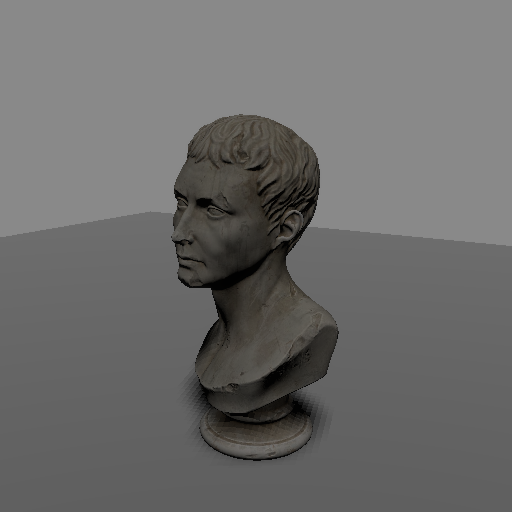
And just like that, our bust casts a shadow!
Tuning
Shadow maps have limited precision, which shows up as visual artifacts. The two most common are “shadow acne”, where surfaces end up shadowing themselves, and “peter panning”, where shadows detach from their casters. Both are controlled with the bias values on the shadow map’s descriptor:
    // Tune the shadow map by modifying its descriptor.
    //
    // The bias values compensate for the limited precision of the
    // shadow map. Too little bias causes "shadow acne", where surfaces
    // shadow themselves. Too much bias causes "peter panning", where
    // shadows detach from their casters.
    //
    // `pcf_samples` controls the softness of shadow edges through
    // percentage-closer filtering. Higher values are more expensive.
    {
        let mut desc = shadow_map.descriptor_lock();
        desc.bias_min = 0.0005;
        desc.bias_max = 0.005;
        desc.pcf_samples = 4;
    }

    // Update and render again to see the difference.
    shadow_map
        .update(
            &stage,
            model.renderlets_iter().chain(std::iter::once(&floor)),
        )
        .unwrap();

    let frame = ctx.get_next_frame().unwrap();
    stage.render(&frame.view());
    frame.present();
Increasing the bias values lifts surfaces out of their own shadow, fixing acne. Too much bias, though, and shadows start to detach from the objects casting them.
The pcf_samples field controls the softness of the shadow edges through
“percentage-closer filtering”. Higher values produce softer edges but cost
more texture samples.
Tips for making a good shadow map
- Make sure the map is big enough. A bigger map gives cleaner shadows, and can fix some peter panning issues even before playing with bias.
- Don’t set
pcf_samplestoo high. A high sample count can actually cause peter panning, and costs more. - Ensure
z_nearandz_farmake sense for your scene. If you find that shadows are cut off in a straight line, it’s likely one of them needs adjustment. - Expect point lights to be more expensive. A point light shadow map renders the scene from six points of view, one for each face of a cube around the light. To compensate for the lower per-face resolution, the number of percentage-closer filtering samples is forced to 16 for point lights.
Materials and textures 🎨
Materials describe how a surface looks and how it responds to light: its base color, how metallic and rough it is, whether it glows on its own, and which textures to sample for all of the above.
We met Material briefly in the staging chapter - now let’s
give it a proper tour.
Example setup
We’ll use two cubes that share the same vertices, each with its own transform. Materials can be shared by any number of primitives, and by the end of this chapter you’ll see why that’s useful:
    use renderling::{
        camera::Camera,
        context::Context,
        glam::{Mat4, Vec3, Vec4},
        primitive::Primitive,
        stage::Stage,
    };

    let ctx = Context::headless(512, 512).await;
    let stage: Stage = ctx
        .new_stage()
        .with_background_color(Vec4::new(0.25, 0.25, 0.25, 1.0));

    let _camera: Camera = {
        let aspect = 1.0;
        let fovy = core::f32::consts::PI / 4.0;
        let znear = 0.1;
        let zfar = 100.0;
        let projection = Mat4::perspective_rh(fovy, aspect, znear, zfar);
        let eye = Vec3::new(0.0, 0.5, 4.2);
        let target = Vec3::ZERO;
        let up = Vec3::Y;
        let view = Mat4::look_at_rh(eye, target, up);

        stage
            .new_camera()
            .with_projection_and_view(projection, view)
    };

    // Two cubes sharing the same vertices, each with its own transform.
    let geometry = stage.new_vertices(uv_unit_cube());
    let offset = 0.9;
    let left: Primitive = stage
        .new_primitive()
        .with_vertices(&geometry)
        .with_transform(
            stage
                .new_transform()
                .with_translation(Vec3::new(-offset, 0.0, 0.0)),
        );
    let right: Primitive = stage
        .new_primitive()
        .with_vertices(&geometry)
        .with_transform(
            stage
                .new_transform()
                .with_translation(Vec3::new(offset, 0.0, 0.0)),
        );
The albedo factor
The simplest material parameter is the “albedo factor” - the base color of the surface. Here we create an unlit material (lighting turned off on the material itself) with a teal albedo factor, and assign it to both cubes:
    use renderling::color::css_srgb_color_to_linear;

    // Create an unlit material with a teal albedo factor.
    let material = stage
        .new_material()
        .with_albedo_factor(css_srgb_color_to_linear(0, 128, 128))
        .with_has_lighting(false);

    // Both primitives share the same material.
    left.set_material(&material);
    right.set_material(&material);

    let frame = ctx.get_next_frame().unwrap();
    stage.render(&frame.view());
    let img_teal = frame.read_image().await.unwrap();
    img_teal.save("material/albedo-factor.png").unwrap();
    frame.present();
Note that one material instance covers both cubes. Materials are staged
resources - assigning the same Material to many primitives costs nothing
extra, and any later change to the material updates every primitive using it.
Textures and the atlas
Flat colors only get you so far. To use image textures, first stage them in
the stage’s texture atlas with Stage::set_images, which takes
AtlasImages and returns one AtlasTexture handle per image:
    use renderling::atlas::AtlasImage;

    // Load two images and stage them in the stage's texture atlas.
    //
    // `set_images` returns one `AtlasTexture` handle per image. Note that
    // calling it again repacks the atlas and invalidates any previous
    // handles, so stage all the images you need up front.
    let sandstone = AtlasImage::from_path(workspace_dir().join("img/sandstone.png")).unwrap();
    let dirt = AtlasImage::from_path(workspace_dir().join("img/dirt.jpg")).unwrap();
    let entries = stage.set_images([sandstone, dirt]).unwrap();
Two things to know about set_images:
- It resets the atlas, repacking it with just the images given. Any
AtlasTexturehandles from a previous call are invalidated. - Because of that, stage all the images you’ll need up front, in one call.
Using a texture
With handles in hand, we can set the albedo texture of our material:
    // The albedo factor multiplies the albedo texture, so reset it to
    // white and use the first image as the albedo texture.
    material
        .set_albedo_factor(Vec4::ONE)
        .set_albedo_texture(&entries[0]);

    let frame = ctx.get_next_frame().unwrap();
    stage.render(&frame.view());
    let img_sandstone = frame.read_image().await.unwrap();
    img_sandstone.save("material/albedo-texture.png").unwrap();
    frame.present();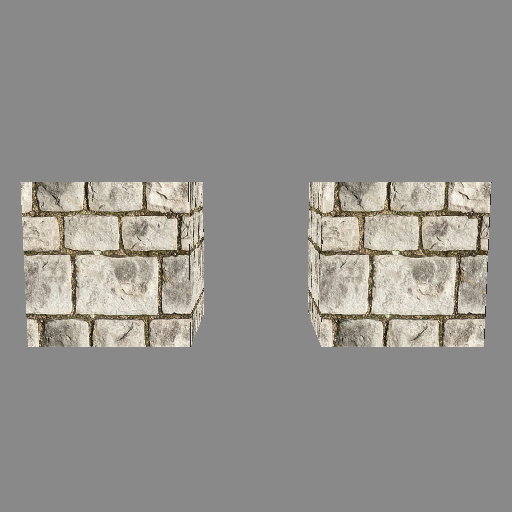
The albedo factor multiplies the albedo texture, which is why we reset it to white first. Multiplying by a non-white factor is a cheap way to tint a texture.
Updating materials at runtime
Materials are staged, so updates are cheap and automatic. One call to
Material::set_albedo_texture switches both cubes to the second image:
    // Updating a material at runtime is just as easy. Here we switch the
    // albedo texture of both cubes to the second image with a single call.
    material.set_albedo_texture(&entries[1]);

    let frame = ctx.get_next_frame().unwrap();
    stage.render(&frame.view());
    let img_dirt = frame.read_image().await.unwrap();
    img_dirt.save("material/albedo-updated.png").unwrap();
    frame.present();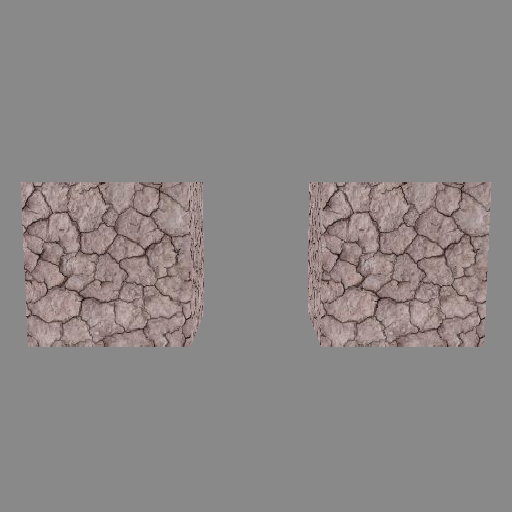
PBR parameters
So far our material has been unlit. With lighting on, materials become “physically based” (PBR), with a few more knobs:
metallic_factor- how metal-like the surface is. Metals tint their reflections with the albedo color.roughness_factor- how rough the surface is. Rough surfaces blur reflections.
For this demo we’ll also give the scene a skybox, image-based lighting and a sun, so the metallic surface has an environment to reflect. Those are covered in the skybox and lighting chapters:
    use renderling::light::{AnalyticalLight, DirectionalLight, Lux};

    // Turn on lighting and give the scene an environment so the material
    // has something to reflect. (See the skybox and image-based lighting
    // chapters.)
    let skybox = stage
        .new_skybox_from_path(workspace_dir().join("img/hdr/helipad.hdr"))
        .unwrap();
    stage.use_skybox(&skybox);
    let ibl = stage.new_ibl(&skybox);
    stage.use_ibl(&ibl);

    let _sun: AnalyticalLight<DirectionalLight> = stage
        .new_directional_light()
        .with_direction(Vec3::new(-0.4, -1.0, -0.5).normalize())
        .with_color(Vec4::ONE)
        .with_intensity(Lux::OUTDOOR_OVERCAST_HIGH);

    // Give the material PBR parameters: make our sandstone cubes metallic
    // with low roughness, like polished gold.
    material
        .set_has_lighting(true)
        .set_albedo_texture(&entries[0])
        .set_metallic_factor(1.0)
        .set_roughness_factor(0.2);

    let frame = ctx.get_next_frame().unwrap();
    stage.render(&frame.view());
    let img_pbr = frame.read_image().await.unwrap();
    img_pbr.save("material/pbr.png").unwrap();
    frame.present();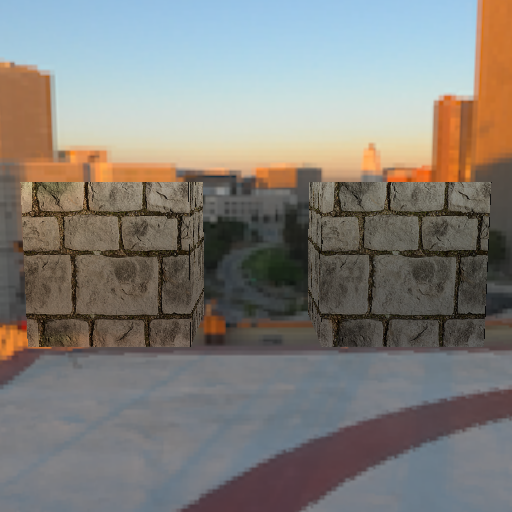
Crank the roughness up and the reflections smear into a matte surface:
    // Increasing the roughness blurs the reflections, making the surface
    // appear matte.
    material.set_roughness_factor(1.0);

    let frame = ctx.get_next_frame().unwrap();
    stage.render(&frame.view());
    let img_rough = frame.read_image().await.unwrap();
    img_rough.save("material/pbr-rough.png").unwrap();
    frame.present();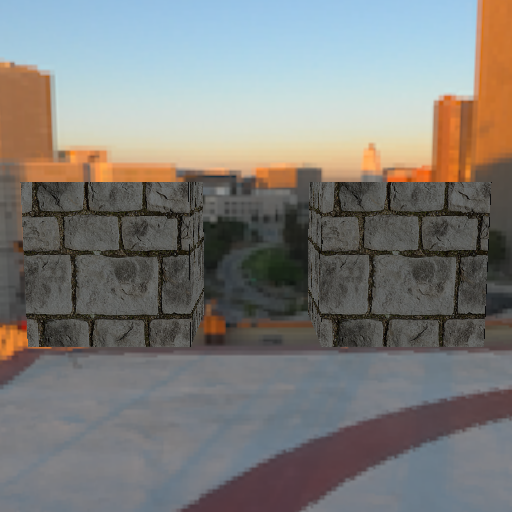
Emissive color
Emissive color is added directly to the final color, regardless of lighting, and takes an optional strength multiplier. Combined with bloom, emissive materials glow:
    // Emissive color is added directly to the final color, regardless of
    // lighting. Combined with bloom it makes objects glow.
    material
        .set_emissive_factor(Vec3::new(1.0, 0.25, 0.1))
        .set_emissive_strength_multiplier(2.0);

    let frame = ctx.get_next_frame().unwrap();
    stage.render(&frame.view());
    let img_emissive = frame.read_image().await.unwrap();
    img_emissive.save("material/emissive.png").unwrap();
    frame.present();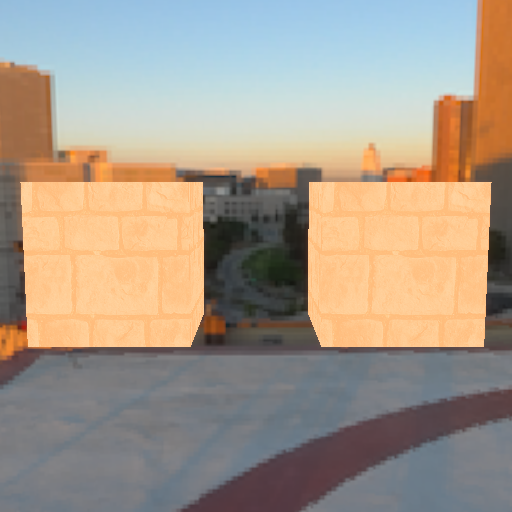
Normal maps
Normal maps fake small-scale surface detail by perturbing the surface normal per-pixel, which changes how light interacts with the surface without adding any geometry.
GLTF files can carry normal maps, and the loader wires them into the material for you. This brick sphere has lighting and a normal map baked in:
    use renderling::{context::Context, glam::Vec4, stage::Stage};

    // GLTF files can carry textures of their own, including normal maps.
    // This brick sphere has lighting and a normal map baked in, and the
    // loader wires them into the stage and material for us.
    let ctx = Context::headless(800, 450).await;
    let stage: Stage = ctx
        .new_stage()
        .with_lighting(true)
        .with_background_color(Vec4::new(0.01, 0.01, 0.01, 1.0));

    let _doc = stage
        .load_gltf_document_from_path(workspace_dir().join("gltf/normal_mapping_brick_sphere.glb"))
        .unwrap();

    let frame = ctx.get_next_frame().unwrap();
    stage.render(&frame.view());
    let img = frame.read_image().await.unwrap();
    img.save("material/normal-map.png").unwrap();
    frame.present();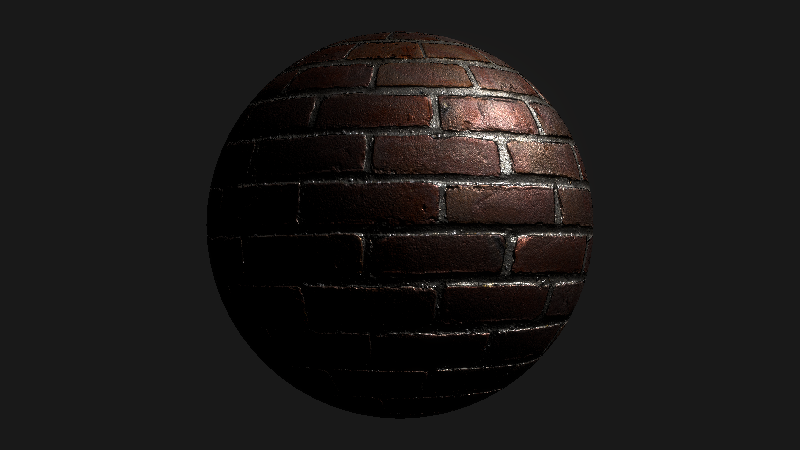
When building materials by hand, the same slots exist as builders:
Material::with_normal_texture,
Material::with_metallic_roughness_texture,
Material::with_ambient_occlusion_texture and
Material::with_emissive_texture, along with their set_* counterparts.
Each texture slot can also pick which UV set of the vertex to sample with
(with_albedo_tex_coord and friends) when a mesh carries more than one.
Post-processing ✨
renderling renders scenes in high dynamic range (HDR), where colors can be
far brighter than a display can show. After the scene is rendered, two
post-processing passes turn that HDR image into the final picture:
- Bloom - bright areas glow, by mixing a blurred copy of the bright parts back into the image.
- Tonemapping - HDR values are mapped into the range the display can show, using an exposure value and a tone mapping algorithm.
Example setup
We’ll use a night sky and a model full of glowing emissive objects, so there are bright areas for the effects to work on. Note that bloom is on by default - we turn it off here so we can show the difference:
    use renderling::{
        camera,
        context::Context,
        glam::{Vec3, Vec4},
        stage::Stage,
    };

    let width = 512;
    let height = 256;
    let ctx = Context::headless(width, height).await;
    // Bloom is on by default - we turn it off so we can show the
    // difference.
    let stage: Stage = ctx
        .new_stage()
        .with_bloom(false)
        .with_background_color(Vec4::new(0.25, 0.25, 0.25, 1.0));

    let projection = camera::perspective(width as f32, height as f32);
    let view = camera::look_at(Vec3::new(0.0, 2.0, 18.0), Vec3::ZERO, Vec3::Y);
    let _camera = stage
        .new_camera()
        .with_projection_and_view(projection, view);

    // A night sky and an emissive-strength test model full of glowing
    // objects, so there are bright areas for the bloom effect to pick up.
    let skybox = stage
        .new_skybox_from_path(workspace_dir().join("img/hdr/night.hdr"))
        .unwrap();
    stage.use_skybox(&skybox);
    let ibl = stage.new_ibl(&skybox);
    stage.use_ibl(&ibl);

    let _model = stage
        .load_gltf_document_from_path(workspace_dir().join("gltf/EmissiveStrengthTest.glb"))
        .unwrap();

    let frame = ctx.get_next_frame().unwrap();
    stage.render(&frame.view());
    let img_no_bloom = frame.read_image().await.unwrap();
    img_no_bloom.save("postprocessing/bloom-none.png").unwrap();
    frame.present();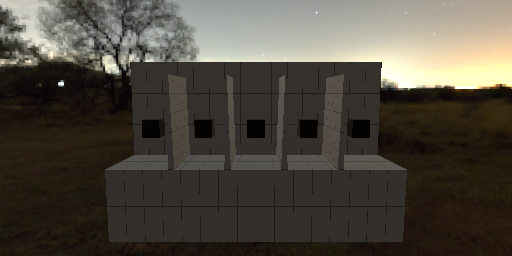
Bloom
Bloom can be toggled at stage creation with Stage::with_bloom, or at
runtime with Stage::set_has_bloom. Two parameters control the look:
Stage::set_bloom_mix_strength- how much of the blurred bright areas to mix back into the image. Defaults to0.04.Stage::set_bloom_filter_radius- the radius of the blur, in texels.
    // Turn bloom on, either at stage creation with `.with_bloom(true)` or
    // at runtime.
    stage.set_has_bloom(true);
    // How much of the blurred bright areas to mix back into the image.
    stage.set_bloom_mix_strength(0.1);
    // The radius of the blur, in texels.
    stage.set_bloom_filter_radius(2.0);

    let frame = ctx.get_next_frame().unwrap();
    stage.render(&frame.view());
    let img_bloom = frame.read_image().await.unwrap();
    img_bloom.save("postprocessing/bloom.png").unwrap();
    frame.present();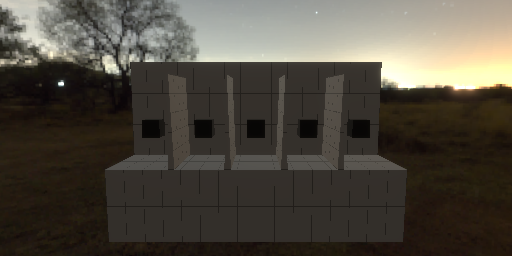
Tonemapping
Before the image is shown, it is multiplied by the exposure and passed through the tone mapping algorithm, which compresses HDR values into the display’s range.
The current configuration is available through the stage’s
Tonemapping as a TonemapConstants - a small struct with two fields:
    // The stage renders in high dynamic range (HDR). Before the image is
    // shown it is multiplied by the exposure and run through the tone
    // mapping algorithm, which maps the HDR values into the display's
    // range.
    let mut config = stage.tonemapping().get_tonemapping_config();
    config.exposure = 3.0;
    stage.tonemapping().set_tonemapping_config(config);

    let frame = ctx.get_next_frame().unwrap();
    stage.render(&frame.view());
    let img_exposure = frame.read_image().await.unwrap();
    img_exposure.save("postprocessing/exposure.png").unwrap();
    frame.present();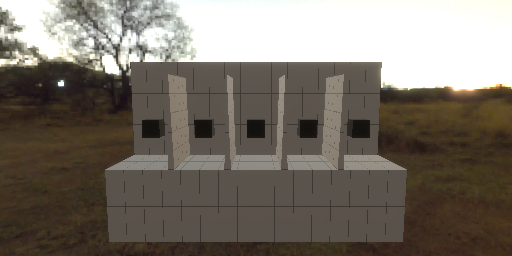
By default no tone mapping algorithm is used (Tonemap::NONE) - HDR values
outside the display range simply clip to white. The available algorithms are:
Tonemap::NONE- no tone mapping, values clip (default)Tonemap::ACES_NARKOWICZ- the popular ACES approximationTonemap::ACES_HILL- the ACES fit by Stephen HillTonemap::ACES_HILL_EXPOSURE_BOOST-ACES_HILLwith a built-in exposure boost, the “filmic” look popularized by three.jsTonemap::REINHARD- the simple Reinhard operator
    use renderling::tonemapping::Tonemap;

    // By default no tone mapping algorithm is used (`Tonemap::NONE`), and
    // HDR values outside the display range simply clip. A filmic operator
    // like ACES compresses the highlights instead.
    config.tonemap = Tonemap::ACES_HILL_EXPOSURE_BOOST;
    config.exposure = 1.0;
    stage.tonemapping().set_tonemapping_config(config);

    let frame = ctx.get_next_frame().unwrap();
    stage.render(&frame.view());
    let img_aces = frame.read_image().await.unwrap();
    img_aces.save("postprocessing/tonemap-aces.png").unwrap();
    frame.present();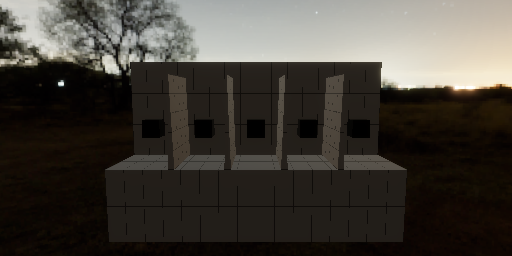
Filmic operators like ACES trade a little saturation for smoother highlights - notice how the bright objects keep more of their color, instead of blowing out to white.
Debug modes 🔍
When shading goes wrong - shadow acne, seams, surfaces lit from the wrong
direction - it helps to see the raw values the shader is working with.
renderling has two built-in debugging tools:
- Debug channels - visualize an intermediate value of the fragment shader as colors, one channel at a time.
- The debug overlay - draw the projected bounding volumes of every drawn primitive, useful when debugging culling. (Currently not rendering - see the caveat below.)
Example setup
We’ll debug the shadow mapping scene from the previous chapters:
    // We'll debug the shadow mapping scene from the previous chapters.
    use renderling::{
        camera::Camera,
        context::Context,
        geometry::Vertex,
        glam::{Mat4, UVec2, Vec3, Vec4},
        gltf::GltfDocument,
        light::{AnalyticalLight, DirectionalLight, Lux},
        primitive::Primitive,
        stage::Stage,
        types::GpuOnlyArray,
    };

    let ctx = Context::headless(512, 512).await;
    let stage: Stage = ctx
        .new_stage()
        .with_background_color(Vec4::new(0.25, 0.25, 0.25, 1.0));

    let _camera: Camera = {
        let aspect = 1.0;
        let fovy = core::f32::consts::PI / 4.0;
        let znear = 0.1;
        let zfar = 10.0;
        let projection = Mat4::perspective_rh(fovy, aspect, znear, zfar);
        let eye = Vec3::new(0.5, 0.5, 0.8);
        let target = Vec3::new(0.0, 0.3, 0.0);
        let up = Vec3::Y;
        let view = Mat4::look_at_rh(eye, target, up);

        stage
            .new_camera()
            .with_projection_and_view(projection, view)
    };

    let model: GltfDocument<GpuOnlyArray> = stage
        .load_gltf_document_from_path(workspace_dir().join("gltf/marble_bust_1k.glb"))
        .unwrap()
        .into_gpu_only();

    let y = -0.01;
    let s = 2.0;
    let floor: Primitive = stage
        .new_primitive()
        .with_vertices(
            stage.new_vertices([
                Vertex::default()
                    .with_position([s, y, s])
                    .with_normal(Vec3::Y),
                Vertex::default()
                    .with_position([s, y, -s])
                    .with_normal(Vec3::Y),
                Vertex::default()
                    .with_position([-s, y, -s])
                    .with_normal(Vec3::Y),
                Vertex::default()
                    .with_position([s, y, s])
                    .with_normal(Vec3::Y),
                Vertex::default()
                    .with_position([-s, y, -s])
                    .with_normal(Vec3::Y),
                Vertex::default()
                    .with_position([-s, y, s])
                    .with_normal(Vec3::Y),
            ]),
        )
        .with_material(
            stage
                .new_material()
                .with_albedo_factor(Vec4::new(0.85, 0.85, 0.85, 1.0)),
        );

    let sun: AnalyticalLight<DirectionalLight> = stage
        .new_directional_light()
        .with_direction(Vec3::new(-0.4, -1.0, -0.6).normalize())
        .with_color(Vec4::ONE)
        .with_intensity(Lux::OUTDOOR_OVERCAST_HIGH);

    let shadow_map = stage
        .new_shadow_map(&sun, UVec2::splat(1024), 0.1, 10.0)
        .unwrap();
    shadow_map
        .update(
            &stage,
            model.renderlets_iter().chain(std::iter::once(&floor)),
        )
        .unwrap();

    let frame = ctx.get_next_frame().unwrap();
    stage.render(&frame.view());
    let img_none = frame.read_image().await.unwrap();
    img_none.save("debug/none.png").unwrap();
    frame.present();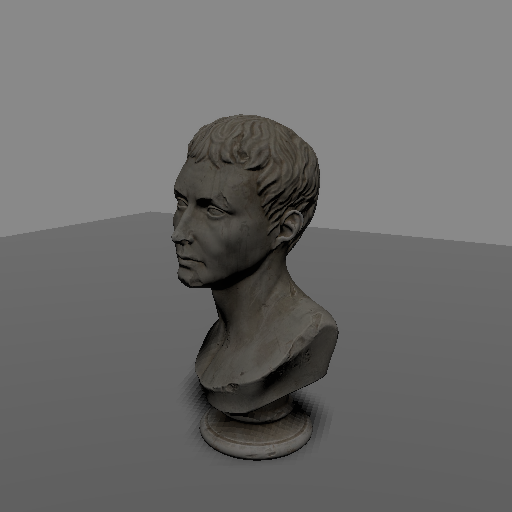
Debug channels
Set the stage’s debug channel with Stage::set_debug_mode (or
Stage::with_debug_mode at stage creation). The scene then renders through
the given DebugChannel, which early-exits the fragment shader and displays
an intermediate value as colors:
    use renderling::pbr::debug::DebugChannel;

    // Display the world-space normals, after normal mapping.
    stage.set_debug_mode(DebugChannel::Normals);

    let frame = ctx.get_next_frame().unwrap();
    stage.render(&frame.view());
    let img_normals = frame.read_image().await.unwrap();
    img_normals.save("debug/normals.png").unwrap();
    frame.present();

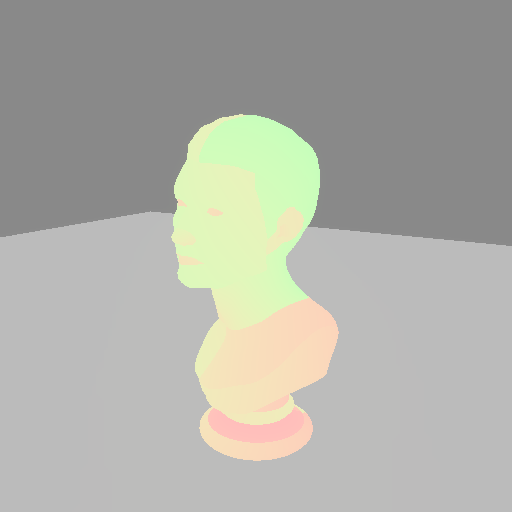
    // Display the first set of UV coordinates.
    stage.set_debug_mode(DebugChannel::UvCoords0);

    let frame = ctx.get_next_frame().unwrap();
    stage.render(&frame.view());
    let img_uv = frame.read_image().await.unwrap();
    img_uv.save("debug/uv-coords.png").unwrap();
    frame.present();

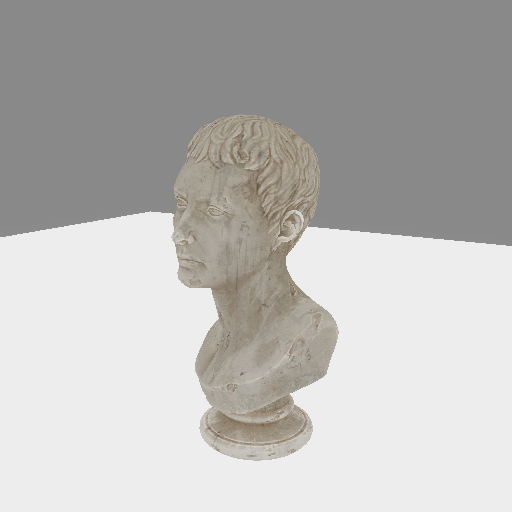
    // Display just the albedo color.
    stage.set_debug_mode(DebugChannel::Albedo);

    let frame = ctx.get_next_frame().unwrap();
    stage.render(&frame.view());
    let img_albedo = frame.read_image().await.unwrap();
    img_albedo.save("debug/albedo.png").unwrap();
    frame.present();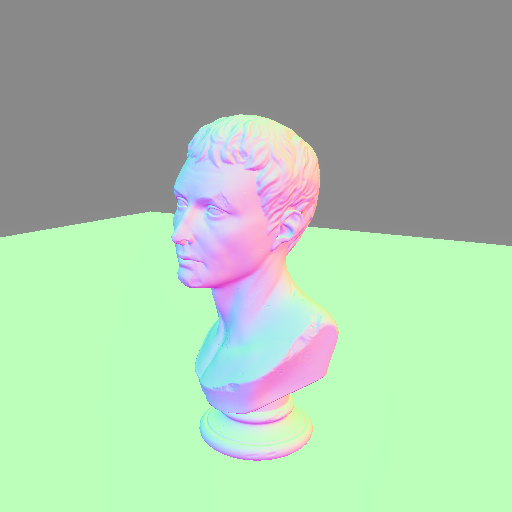
The full set of channels, grouped by what they show:
| group | channels | reach for when |
|---|---|---|
| geometry | UvCoords0, UvCoords1, VertexColor | texture mapping looks wrong, colors are off |
| normals | VertexNormals, Normals, UvNormals, Tangents, Bitangents | lighting/shadows come from the wrong direction; normal maps misbehaving |
| material | Albedo, Roughness, Metallic, Occlusion | a material parameter is not what you think it is |
| emissive | Emissive, UvEmissive, EmissiveFactor, EmissiveStrength | glowing too much or not at all |
| lighting | DiffuseIrradiance, SpecularReflection, Brdf | isolating what the lights and IBL actually contribute |
For example, Normals is the first thing to check when a shadow appears on a
surface that should be lit: a wrong normal explains most “shadows where there
shouldn’t be any” bugs, including shadow-mapping acne.
Set the channel back to DebugChannel::None to render normally again.
The debug overlay
Stage::set_use_debug_overlay (or with_debug_overlay) draws the projected
bounding volume of every drawn primitive as outlines on top of the final
image. It is meant for debugging why things draw or don’t draw - for example
when frustum culling is more aggressive than expected.
Caveat: the debug overlay currently produces no visible output, even on the GPU-driven indirect drawing path it requires - see issue #243. It also silently does nothing under direct drawing, since the overlay visualizes the indirect draw calls.
Scene hierarchy 🌳
When objects must move together - wheels on a car, segments of a robot arm, planets around a sun - you want a hierarchy: change the parent, and the children come along for the ride.
In renderling that is the NestedTransform. Each node has a local
transform, relative to its parent. The node’s global transform is the
composition of every local transform up the chain, and it is recalculated
automatically whenever anything in the chain changes.
Building a hierarchy
Create nodes with Stage::new_nested_transform, position them with their
local_* builder methods, and link them with
NestedTransform::add_child. Then attach primitives with
Primitive::with_transform, handing the node a reference:
    use renderling::{
        camera::Camera,
        context::Context,
        glam::{Mat4, Quat, Vec3, Vec4},
        stage::Stage,
    };

    let ctx = Context::headless(512, 512).await;
    let stage: Stage = ctx
        .new_stage()
        .with_background_color(Vec4::new(0.25, 0.25, 0.25, 1.0));

    let _camera: Camera = {
        let aspect = 1.0;
        let fovy = core::f32::consts::PI / 4.0;
        let projection = Mat4::perspective_rh(fovy, aspect, 0.1, 100.0);
        let eye = Vec3::new(0.0, 2.0, 6.0);
        let target = Vec3::ZERO;
        let up = Vec3::Y;
        let view = Mat4::look_at_rh(eye, target, up);

        stage
            .new_camera()
            .with_projection_and_view(projection, view)
    };

    // Build a three-level hierarchy: root -> child -> grandchild.
    //
    // Each node has a _local_ transform, relative to its parent.
    let root = stage.new_nested_transform();
    let child = stage
        .new_nested_transform()
        .with_local_translation(Vec3::X * 1.2);
    let grandchild = stage
        .new_nested_transform()
        .with_local_translation(Vec3::X * 1.2);
    root.add_child(&child);
    child.add_child(&grandchild);

    // Attach a colored cube to each node. Primitives take the node's
    // _global_ transform, which is composed from the whole hierarchy.
    let cube = |color: Vec4| {
        stage
            .new_primitive()
            .with_vertices(stage.new_vertices(unit_cube()))
            .with_material(
                stage
                    .new_material()
                    .with_albedo_factor(color)
                    .with_has_lighting(false),
            )
    };
    cube(Vec4::new(0.6, 0.6, 0.6, 1.0)).with_transform(&root);
    cube(Vec4::new(0.0, 0.85, 0.85, 1.0)).with_transform(&child);
    cube(Vec4::new(0.95, 0.85, 0.1, 1.0)).with_transform(&grandchild);

    let frame = ctx.get_next_frame().unwrap();
    stage.render(&frame.view());
    let img_before = frame.read_image().await.unwrap();
    img_before.save("scene/hierarchy.png").unwrap();
    frame.present();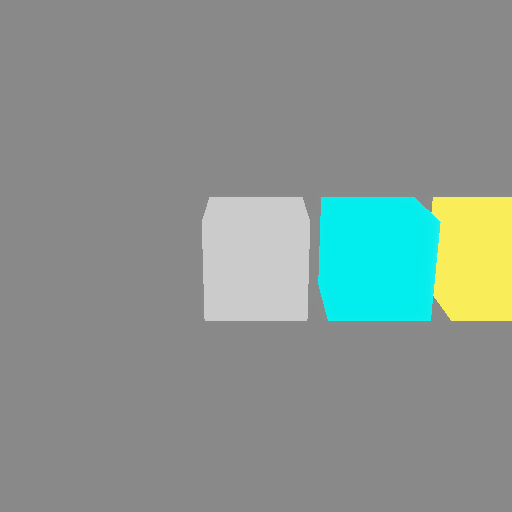
Note the cubes are all attached to nodes, not positioned directly. The cyan
cube sits at root * child, and the yellow one at root * child * grandchild.
Moving the parent moves the subtree
Because children are positioned relative to their parent, changing the parent moves everything below it:
    // Rotate the root - the entire hierarchy rotates with it, because
    // the child and grandchild are positioned relative to the root.
    root.set_local_rotation(Quat::from_axis_angle(Vec3::Y, core::f32::consts::FRAC_PI_4));

    let frame = ctx.get_next_frame().unwrap();
    stage.render(&frame.view());
    let img_parent = frame.read_image().await.unwrap();
    img_parent.save("scene/moved-parent.png").unwrap();
    frame.present();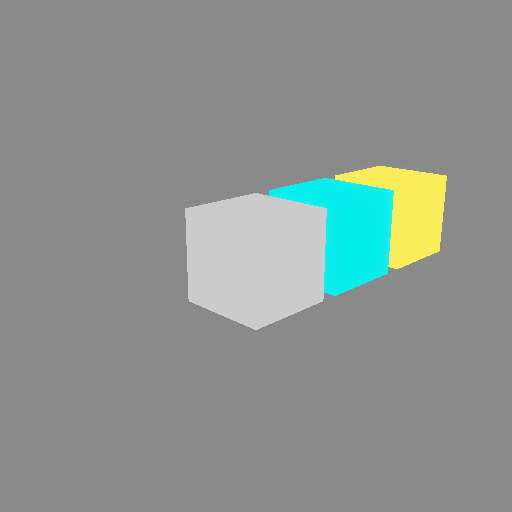
One rotation of the root carried the entire chain.
Moving a child moves only its subtree
Change a node’s local transform, and its parent stays put:
    // Move the child - the root stays put, and the grandchild follows the
    // child.
    child.set_local_translation(Vec3::new(1.2, 1.2, 0.0));

    let frame = ctx.get_next_frame().unwrap();
    stage.render(&frame.view());
    let img_child = frame.read_image().await.unwrap();
    img_child.save("scene/moved-child.png").unwrap();
    frame.present();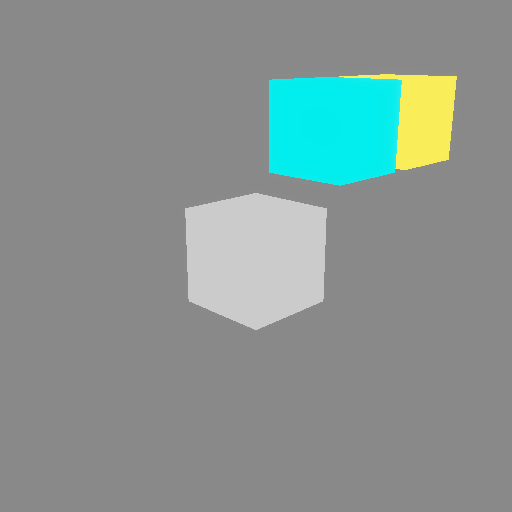
Notes
- Local vs global: the
local_*getters and setters work in the parent’s space. To inspect the composed result, useNestedTransform::global_descriptor, or walk the whole chain withNestedTransform::hierarchy. - Updates are immediate: changing a local transform (or the graph itself) recomputes the globals of the whole subtree right away, and the new globals sync to the GPU on the next render.
- Detaching:
NestedTransform::remove_childunlinks a node, which then keeps its own transform;NestedTransform::parentreturns the parent, if any. - Standalone objects that never need to follow anything can use the
simpler
TransformfromStage::new_transforminstead - that is what the earlier chapters used.
Animation 🎬
GLTF files can carry animation data, and renderling can play it back. There
are three related mechanisms:
- Animation clips - keyframed translations, rotations and scales for the
nodes in a scene, played back with the
Animator. - Morph targets - per-vertex “shapes” blended by weight.
- Skins - vertices bound to a skeleton of joint transforms.
Playing an animation clip
We’ll start with a GLTF file containing an animated triangle. As usual, load it through the stage, then render the starting frame:
    use renderling::{
        camera,
        context::Context,
        glam::{Vec3, Vec4},
        stage::Stage,
    };

    let ctx = Context::headless(512, 512).await;
    let stage: Stage = ctx
        .new_stage()
        .with_lighting(false)
        .with_bloom(false)
        .with_background_color(Vec4::new(0.25, 0.25, 0.25, 1.0));

    let projection = camera::perspective(512.0, 512.0);
    let view = camera::look_at(Vec3::Z * 3.0, Vec3::ZERO, Vec3::Y);
    let _camera = stage
        .new_camera()
        .with_projection_and_view(projection, view);

    // Load a GLTF file containing an animation.
    let doc = stage
        .load_gltf_document_from_path(workspace_dir().join("gltf/animated_triangle.gltf"))
        .unwrap();

    let frame = ctx.get_next_frame().unwrap();
    stage.render(&frame.view());
    let img_frame_0 = frame.read_image().await.unwrap();
    img_frame_0.save("animation/frame-0.png").unwrap();
    frame.present();
To play the document’s animation, collect the scene’s nodes and hand them to
the Animator along with a clip:
    use renderling::gltf::Animator;

    // Collect every node in the scene, and build an `Animator` for the
    // document's first animation clip.
    let nodes = doc
        .recursive_nodes_in_scene(doc.default_scene.unwrap_or_default())
        .collect::<Vec<_>>();
    let mut animator = Animator::new(nodes, doc.animations.first().unwrap().clone());
Then advance the animation and render. In an application this happens every
frame, with dt the time since the previous one:
    // Advance the animation and render frames. In an application this
    // would happen every frame, with `dt` the time since the last one.
    let dt = 1.0 / 8.0;
    let mut img_frame_2 = None;
    let mut img_frame_5 = None;
    for i in 1..=8 {
        animator.progress(dt).unwrap();

        if i == 2 || i == 5 {
            let frame = ctx.get_next_frame().unwrap();
            stage.render(&frame.view());
            let img = frame.read_image().await.unwrap();
            img.save(format!("animation/frame-{i}.png")).unwrap();
            if i == 2 {
                img_frame_2 = Some(img);
            } else {
                img_frame_5 = Some(img);
            }
            frame.present();
        }
    }
    let img_frame_2 = img_frame_2.unwrap();
    let img_frame_5 = img_frame_5.unwrap();


The animation wraps around automatically once it runs past its last keyframe.
Morph targets
Morph targets are alternative positions (and normals/tangents) for a mesh’s vertices, blended in by weight. This is how faces emote, how lips sync, and how simple effects like this twisted quad are done:
    use renderling::{
        camera,
        context::Context,
        geometry::{MorphTarget, Vertex},
        glam::{Vec3, Vec4},
        stage::Stage,
    };

    let ctx = Context::headless(512, 512).await;
    let stage: Stage = ctx
        .new_stage()
        .with_lighting(false)
        .with_background_color(Vec4::new(0.25, 0.25, 0.25, 1.0));

    let projection = camera::perspective(512.0, 512.0);
    let view = camera::look_at(Vec3::Z * 3.0, Vec3::ZERO, Vec3::Y);
    let _camera = stage
        .new_camera()
        .with_projection_and_view(projection, view);

    // A quad.
    let quad = stage
        .new_primitive()
        .with_vertices(stage.new_vertices([
            Vertex::default().with_position([-1.0, -1.0, 0.0]),
            Vertex::default().with_position([1.0, -1.0, 0.0]),
            Vertex::default().with_position([1.0, 1.0, 0.0]),
            Vertex::default().with_position([-1.0, 1.0, 0.0]),
        ]))
        .with_material(
            stage
                .new_material()
                .with_albedo_factor(Vec4::new(0.95, 0.85, 0.1, 1.0))
                .with_has_lighting(false),
        );

    // One morph target per vertex, describing where each vertex moves at
    // full weight. Here the quad twists: the left edge comes toward the
    // camera, the right edge moves away.
    let twist = stage.new_morph_targets([vec![
        MorphTarget {
            position: Vec3::new(-1.0, -1.0, 1.0),
            ..Default::default()
        },
        MorphTarget {
            position: Vec3::new(1.0, -1.0, -1.0),
            ..Default::default()
        },
        MorphTarget {
            position: Vec3::new(1.0, 1.0, -1.0),
            ..Default::default()
        },
        MorphTarget {
            position: Vec3::new(-1.0, 1.0, 1.0),
            ..Default::default()
        },
    ]]);
    let weights = stage.new_morph_target_weights([0.0f32]);
    quad.set_morph_targets(twist, weights.clone());

    let frame = ctx.get_next_frame().unwrap();
    stage.render(&frame.view());
    let img_flat = frame.read_image().await.unwrap();
    img_flat.save("animation/morph-0.png").unwrap();
    frame.present();

    // Morph weights can be changed at runtime.
    weights.set_item(0, 1.0);

    let frame = ctx.get_next_frame().unwrap();
    stage.render(&frame.view());
    let img_twisted = frame.read_image().await.unwrap();
    img_twisted.save("animation/morph-1.png").unwrap();
    frame.present();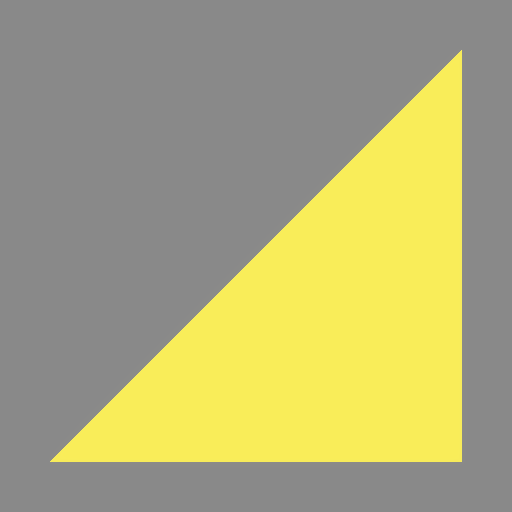

Here we built the morph target by hand with
Stage::new_morph_targets and Stage::new_morph_target_weights, attached
them with Primitive::set_morph_targets, and updated the weight at
runtime. For GLTF files, the loader stages morph targets for you, and
animation clips can drive the weights automatically through the
Animator.
Skins
“Skinned” meshes have their vertices bound to a skeleton: each vertex follows
a weighted combination of “joint” transforms, so moving a joint drags the
mesh along like skin over bone. Loading a rigged GLTF file stages the skin,
and rendering with skinning is enabled with
Stage::set_has_vertex_skinning (or with_vertex_skinning on the stage):
stage.set_has_vertex_skinning(true);Caveat: vertex skinning currently produces no visible effect, even with the skeleton posed - see issue #244. The manual will cover skinning in depth once that is fixed.
Performance ⚡
renderling is a GPU-driven renderer: several features move work from your
code (and from wasted GPU work) into efficient pre-passes. None of them change
the picture - they change how much work it takes to produce it.
Frustum culling
Objects outside the camera’s view cannot be seen, so there is no reason to draw them. Frustum culling skips them in a GPU step before drawing, and is on by default:
    use renderling::{
        camera,
        context::Context,
        glam::{Vec3, Vec4},
        stage::Stage,
    };

    let ctx = Context::headless(512, 512).await;
    let stage: Stage = ctx
        .new_stage()
        .with_lighting(false)
        .with_background_color(Vec4::new(0.25, 0.25, 0.25, 1.0));

    let projection = camera::perspective(512.0, 512.0);
    let view = camera::look_at(Vec3::new(0.0, 2.5, 5.5), Vec3::ZERO, Vec3::Y);
    let _camera = stage
        .new_camera()
        .with_projection_and_view(projection, view);

    // A grid of cubes, some of which are outside the camera's view.
    let geometry = stage.new_vertices(unit_cube());
    for x in 0..7 {
        for z in 0..7 {
            stage
                .new_primitive()
                .with_vertices(&geometry)
                .with_transform(
                    stage
                        .new_transform()
                        .with_translation(Vec3::new(
                            x as f32 * 1.2 - 3.6,
                            0.0,
                            z as f32 * 1.2 - 3.6,
                        ))
                        .with_scale(Vec3::splat(0.25)),
                )
                .with_material(
                    stage
                        .new_material()
                        .with_albedo_factor(Vec4::new(0.4, 0.7, 0.9, 1.0))
                        .with_has_lighting(false),
                );
        }
    }

    // Frustum culling is on by default. Objects outside the camera's
    // view are skipped by the GPU.
    let frame = ctx.get_next_frame().unwrap();
    stage.render(&frame.view());
    let img_culled = frame.read_image().await.unwrap();
    img_culled.save("performance/culling.png").unwrap();
    frame.present();

    // Turning frustum culling off must not change the picture - the
    // same objects are visible either way, culling only skips work.
    stage.set_use_frustum_culling(false);
    let frame = ctx.get_next_frame().unwrap();
    stage.render(&frame.view());
    let img_unculled = frame.read_image().await.unwrap();
    frame.present();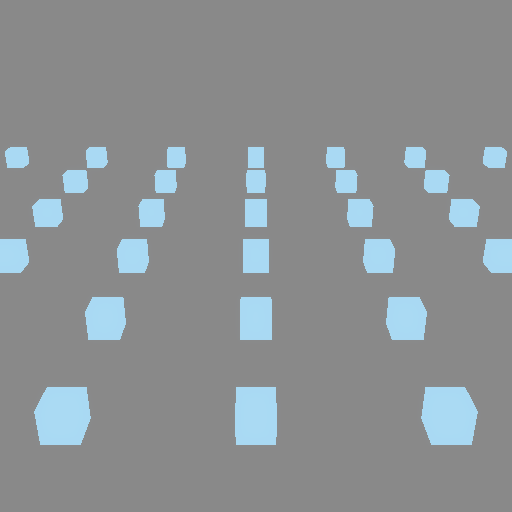
The example renders a grid of cubes with culling on and off - the two renderings are byte-for-byte identical. That is the whole point: culling skips invisible work without changing the output. Turn it off only for debugging:
stage.set_use_frustum_culling(false);Occlusion culling
Occlusion culling goes further and skips objects that are hidden behind other objects. It is off by default, and is still a feature in development:
    // Occlusion culling also skips objects hidden behind other objects.
    // It is off by default and still a feature in development.
    stage.set_use_frustum_culling(true);
    stage.set_use_occlusion_culling(true);
    let frame = ctx.get_next_frame().unwrap();
    stage.render(&frame.view());
    frame
        .read_image()
        .await
        .unwrap()
        .save("performance/occlusion.png")
        .unwrap();
    frame.present();
Light tiling
Analytical lights are how scenes get their shine, but a naive renderer makes every fragment consider every light. With a grid of point lights the cost adds up fast:
    use renderling::{
        camera,
        color::css_srgb_color_to_linear,
        context::Context,
        glam::{Vec3, Vec4},
        light::{AnalyticalLight, Candela, PointLight},
        stage::Stage,
    };

    let ctx = Context::headless(512, 512).await;
    let stage: Stage = ctx
        .new_stage()
        .with_bloom(false)
        .with_background_color(Vec4::new(0.02, 0.02, 0.02, 1.0));

    let projection = camera::perspective(512.0, 512.0);
    let view = camera::look_at(Vec3::new(4.0, 4.0, 8.0), Vec3::ZERO, Vec3::Y);
    let _camera = stage
        .new_camera()
        .with_projection_and_view(projection, view);

    // A ground plane to receive the light.
    stage
        .new_primitive()
        .with_vertices(stage.new_vertices(floor(0.0, 3.0)))
        .with_material(
            stage
                .new_material()
                .with_albedo_factor(Vec4::new(0.85, 0.85, 0.85, 1.0)),
        );

    // A grid of colorful point lights. Without light tiling the shader
    // iterates every light for every fragment.
    let mut lights: Vec<AnalyticalLight<PointLight>> = vec![];
    for i in 0..6 {
        for j in 0..6 {
            let light = stage
                .new_point_light()
                .with_position(Vec3::new(i as f32 * 1.2 - 3.0, 2.5, j as f32 * 1.2 - 3.0))
                .with_color(css_srgb_color_to_linear(
                    (60 + i * 35) as u8,
                    (60 + j * 35) as u8,
                    128,
                ))
                .with_intensity(Candela(20.0));
            lights.push(light);
        }
    }
    println!("lights: {}", lights.len());

    let frame = ctx.get_next_frame().unwrap();
    stage.render(&frame.view());
    let img_untiled = frame.read_image().await.unwrap();
    img_untiled.save("performance/no-tiling.png").unwrap();
    frame.present();
Light tiling bins lights into screen-space tiles, so each fragment only
considers the lights that overlap its tile. Create it with
Stage::new_light_tiling and run it before rendering - in an application,
every frame:
    use renderling::light::LightTilingConfig;

    // Light tiling bins lights into screen tiles so each fragment only
    // considers the lights near it. Run it before rendering - in an
    // application, every frame.
    let tiling = stage.new_light_tiling(LightTilingConfig::default());
    tiling.run(&stage);

    let frame = ctx.get_next_frame().unwrap();
    stage.render(&frame.view());
    let img_tiled = frame.read_image().await.unwrap();
    img_tiled.save("performance/tiling.png").unwrap();
    frame.present();
The two images above are identical - tiling is pure savings. The
LightTilingConfig has three knobs:
tile_size- the size of each screen tile, in pixels. Defaults to16.max_lights_per_tile- the maximum number of lights binned per tile. Defaults to32.minimum_illuminance- lights dimmer than this, in lux, are skipped. Defaults to0.1. (For reference: moonlight is under 1 lux, indoor lighting runs 100-300, detailed work needs 1000 or more.)
MSAA
Multisample anti-aliasing smooths the jagged edges of geometry by taking
multiple samples per pixel. Set the sample count on the stage - 4 is a good
default:
    // Multisample anti-aliasing smooths the edges of geometry. It is set
    // with a sample count - here we go from 1 (no MSAA) to 4.
    stage.set_msaa_sample_count(4);
    let frame = ctx.get_next_frame().unwrap();
    stage.render(&frame.view());
    let img_msaa = frame.read_image().await.unwrap();
    img_msaa.save("performance/msaa-4.png").unwrap();
    frame.present();